Chapter 2: Basic Shapes
The basic isometric line
The most important element you need to know about in isometric art is how the basic line works. What truly makes isometric art is the scale and orientation of the linework. Without touching too much on theory behind isometric perspective, here is how to draw a basic isometric straight line:
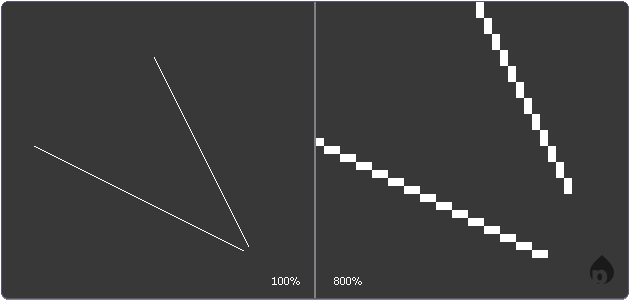 2.1: Clean 2:1 isometric lines.
When viewed at 100%, the lines appear straight and clean. When we zoom in closer, the structure of the lines becomes clear: it should keep a clean ratio of vertical to horizontal, in this case 2:1 or 1:2 (which I'll refer to as 2:1 going forward).
You're probably noticing that this pattern is pretty basic. All simple isometric lines such as the above example have a simple rule you should always follow for clean results: you will almost always be drawing pixels at a 2:1 ratio or 1:1 (diagonal). For example, in the above line starting from the top, pixels are drawn 2 to the right, then 1 down; the other is 1 to the right, then 2 down.
The 2:1 rule uses this basic concept of every single pixel drawn in any direction, moving across two pixels in the perpendicular direction. If you're looking at this line from a birds' eye view straight down, it would appear straight up and down, or vertical.
In our isometric drawing, the perspective of this line works out to 26.565°, which is unimportant for our purposes. True isometric projections use lines at 30°, but not only will this make our drawings appear stretched vertically, it's incredibly difficult to work with. The next example is 30°, and while it almost looks decent, it's not straight and will look poor when used across an entire drawing.
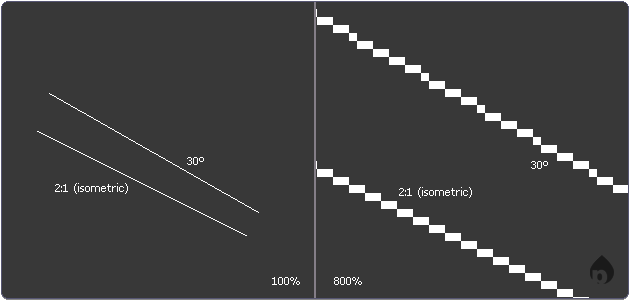 2.2: A true 30° line, but too ugly for our needs.
There are exceptions to our perpendicular line rule, but they are mostly special cases, and you will learn later when they are most useful. Note in the figure below that all the lines aside from the purely vertical, horizontal, and diagonal lines, all of them are using the 2:1 rule. You will be using these all the time for perpendicular surfaces and construction lines.
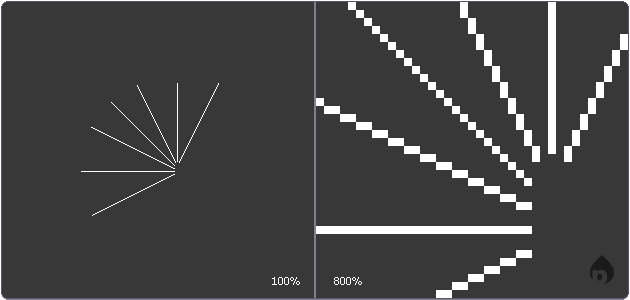 2.3: Different isometric line angles.
The isometric grid
An isometric plane can be divided up into a series of squares that have been joined together to form a larger square. The below image shows us how a normal 2D grid is turned into an isometric grid. The normal grid has simply been moved around, as if it were in a 3D space, so that the view has changed to an isometric view of the plane. Note that the lines do not converge, as in a normal perspective drawing. In isometric drawings, there is no "horizon," so there is no vanishing point, and consequently no "true" 3D perspective.
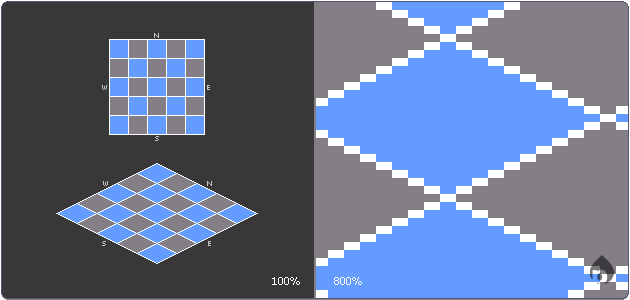 2.4: The top-down, standard grid becomes isometric. Note the 2:1 usage.
Creating an isometric cube
If you're using software that supports layers, usually the first thing to do is create a new layer for the artwork. Working on the background layer (if it's not transparent) can limit our ability to move elements around easily and quickly. If this doesn't apply to you, then let's move on!
We'll start with an outline. The simplest way to outline an isometric shape is to think of it in two dimensions first, then skewed into a three dimensional perspective. Draw one side of the cube using the 2:1 lines discussed earlier.
We'll start with a plain line the width of our upcoming cube. Keep to the 2:1 pixel ratio. The next line you draw will determine the height of your cube. Feel free to copy, then paste, the first line we drew for the top parallel line. Make sure it's vertically aligned with your first line.
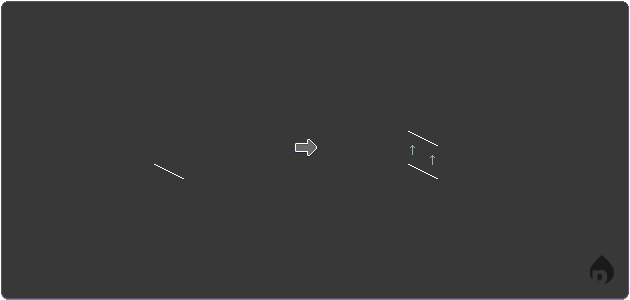 2.7: The first edge of the cube starts with a line.
Connect your two lines at their endpoints with vertical lines. The result should look like an isometric plane, or a parallelogram if looking at it without the "isometric" context. To get your first perpendicular surface, draw a line in the opposite direction until it intersects with the other vertical, as shown below. Optionally, you can duplicate one of your first lines and flip it vertically to create the back edge shown below. Pixel art is tedious enough that you should strive to use shortcuts whenever possible.
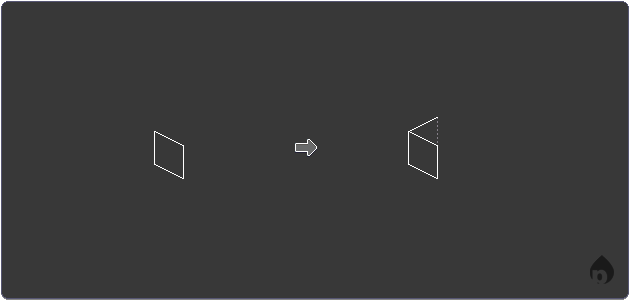 2.5: One half of one cube gleamed.
If you're using software that supports layers, at this point you can copy your entire half-cube, paste it, flip it, and overlay it to create the entire cube. If not, keep drawing perpendicular lines the same as before until they intersect. This is the basic idea behind construction lines. If you go past any of your lines, delete any extra pixels.
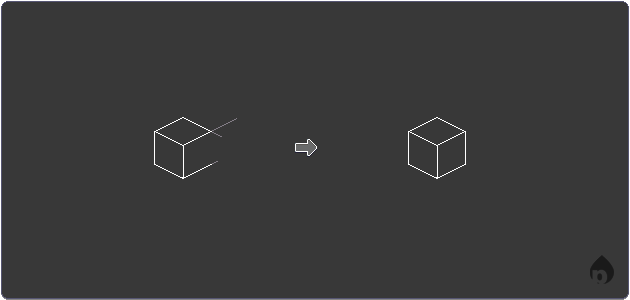 2.6: A Cube.
Time to add some color! Here I'll be choosing a light blue. To create a more believable illusion of depth, I'll use different shades of the same color to create the illusion of a light source and shadow. Using the light source, we can determine shadows, darker areas, and highlights. Since I used a light blue, I have room to use two darker shades of color. If you chose a dark color to begin with, you will generally want to use lighter shades as highlights.
Fill different faces of the cube using the paint bucket / fill tool ( in Aseprite/Photoshop), according to the desired light source. I'm going to choose to have the light coming from the top-left. The top if the cube is filled with the lightest shade since it receives the most light. The left side uses the middle shade since it's closer to the light source. The right side is the darkest, since the shadows on this side are strongest. These shades create depth cues to make the item look more three-dimensional.
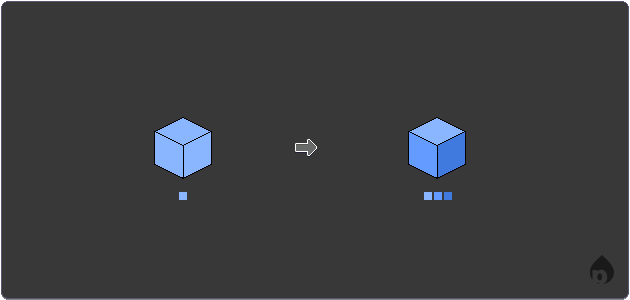 2.7: Basic shades derived from the base color.
To choose color shades, a trick I often use is to use your color picker in HSV (or HSL) mode, which allows you to adjust brightness and saturation individually instead of fiddling with RGB sliders. Darker colors tend to be more saturated and darker, and light values tend to have lower saturation as they get lighter.
Other objects: basic shapes
Now that you've got one of the basic cube shape down, it can be extended into almost any other cube-like shape: skyscrapers, dominoes, dice... the world is your oyster. At some point, though, you might want to mix in different shapes with all your boxes.
The first non-cuboid shape we'll try is a pyramid. It starts as a cube at the bottom, and the sides (at least for a real pyramid) are tilted inward at around 45 degrees to meet in the center. As they slope upward, each side narrows to a single point. This shape starts the same as the cube, but this time we'll start with the base.
Draw an isometric square as shown. To create a pyramid like shown, you can simply connect the bottom corners with diagonal lines for the outer edges and vertical line for the near edge (usually in many pixel art programs).
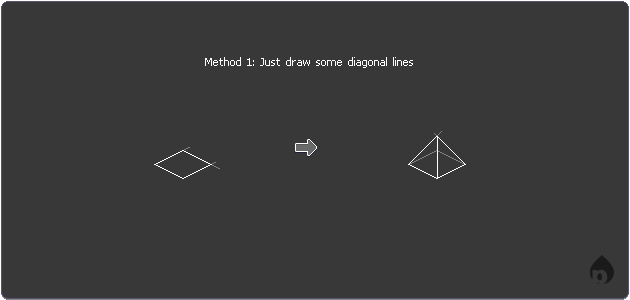 2.9: Drawing a simple 45 degree pyramid.
Looks great, but the problem is it works for one type of pyramid and that's it. If you carefully measured both angles (or used a symmetry tool), you can draw other types, but here's where construction lines come to the rescue:
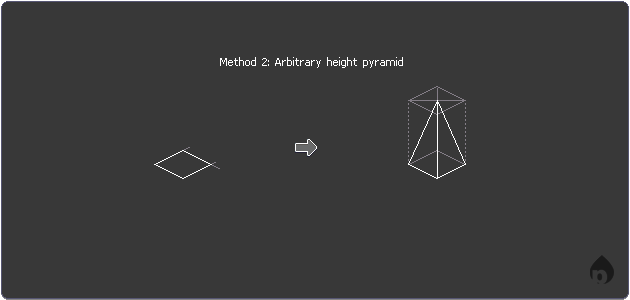 2.10: Drawing any other type of pyramid.
The next shape is pretty easy: a sphere. A sphere from any angle looks like a sphere:
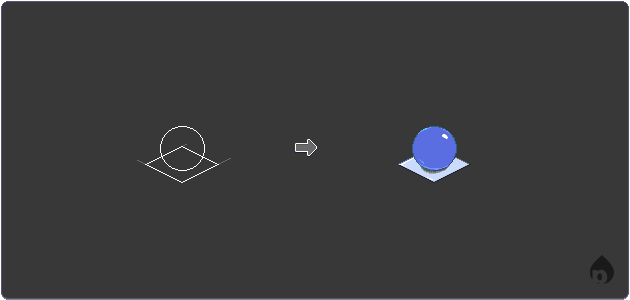 2.11: A sphere is a circle with shading.
Combining shapes
At this point, you can pretty much treat these like certain name-brand interlocking brick toys and combine various shapes to make different objects:
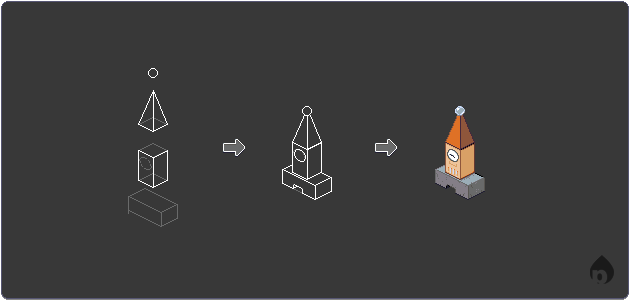 2.12: Draw the rest of the owl!.